My YouTube buddy Ed W4EMB just released a video on Tools To Find And Get To Your Park. He did a great job, you should check it out. He’s inspired me to share what I’ve learned about this topic. I don’t want to drop a “me too” video, so I’m putting something here to compliment what you’ll see in his great video. Understand, this ain’t all there is – everyone has their own ways of doing things – these are mine. Take what you like, leave what you don’t.
- Where can we activate?
- POTA Map
- Park List
- Park Page
- Google Maps
- How do we get there?
- Map Apps
- Garmin GPS
- Paper Maps
- CALtopo
Where can we activate?
Looking for your first park? Looking for something new and exciting? Treating your wife to a BnB getaway? Traveling for work? Yes, please, all of these!
First, they’re called “entities” – might be a state or national park, maybe an historic site or a wildlife management area. To me, it’s easier to just call them parks because… it’s the first word in the name of the game. The Parks On The Air site, http://pota.app, offers two tools showing the parks – the POTA map and the parks list. You’ll see links to both under the hamburger icon (three horizontal lines) in the upper left corner of the page.
POTA Map
https://pota.app/#/map It’s an intuitive tool and would take more time to explain than to click around and figure out yourself. There are a few items of note about the map.
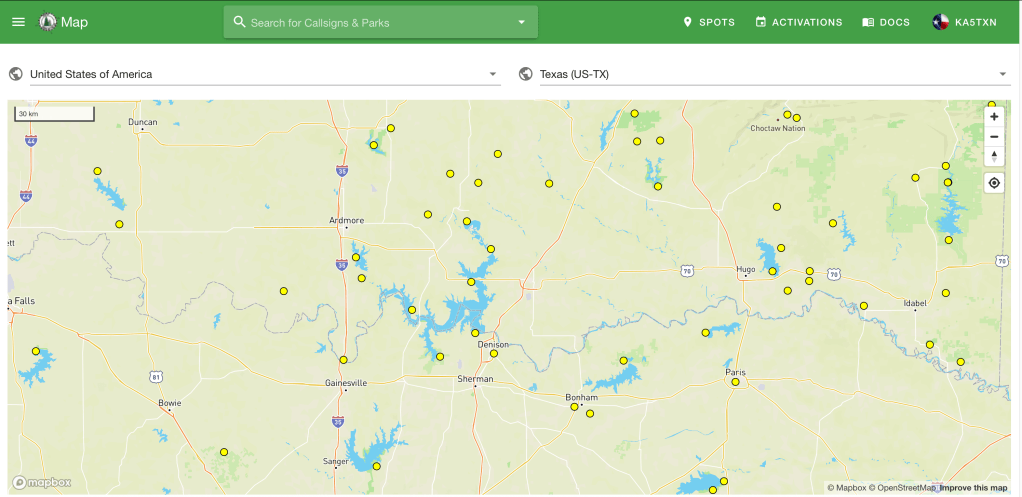
- If you zoom in enough, the map shows topographical contour lines and the little triangle symbols that represent summits or survey reference points. This might be helpful if you hope to combine a Summits On The Air activation with your POTA activation.
- Another point to keep in mind is the shaded area of the park when you zoom in. This shading is not necessarily the boundaries of the park. It might be close, but if you want the definite boundaries of the park, you’ll need to look somewhere else like the park web page and/or a public lands map or map overlay.
- I’ve heard the POTA map isn’t fully comprehensive, meaning it may not display ALL of the parks, and it only shows one dot for a trail though that trail may offer hundreds of locations for a potential activation.
- The dot is just that, a dot. It’d not where you put your chair and table and it’s not the center of the park. It’s just a symbol on the map. If you want to see the actual shape and boundaries of the park, you’ll have to dig deeper. Stay with me – we’re getting there.
Park List
The fully complete and comprehensive list of eligible entities for activations is the Park List https://pota.app/#/parklist. Again, a fairly intuitive tool that based on your filtering, returns a list of parks in a table form.
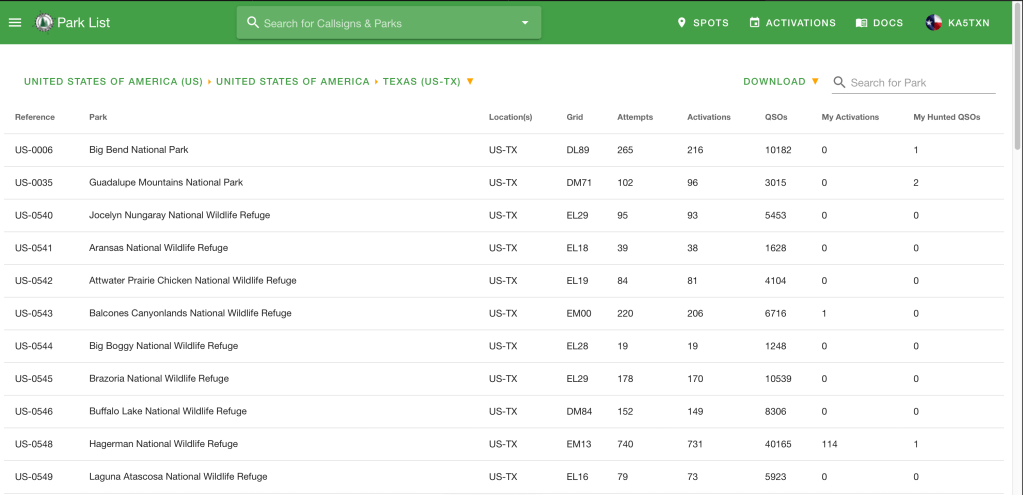
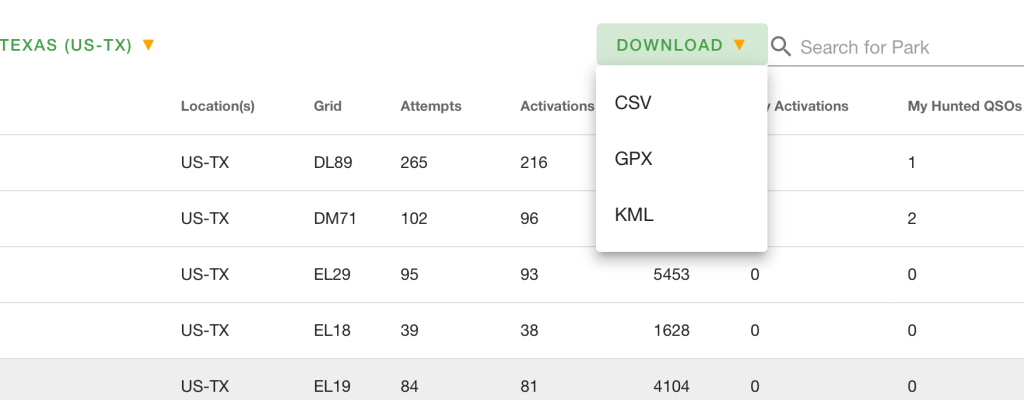
The Park List tool offers a “Download” button that will download the filtered data in three handy formats, CSV, GPX, and KML. I prefer the CSV, Comma Separated Value, so it opens on my laptop as a spreadsheet. If I export as a GPX file, I can drop it in to my Garman GPS and the parks will show up on my Garmin GPSMAP 66i. These are handy tools to have in your pocket.
Park Page
Each park (entity) has a Park Page accessible from both the Map and List. On the map, click a yellow dot and you’ll see a pop up with the park name, number, and a link to more info. The link goes to the entity’s page. On the list, click the park number to get to the park page.
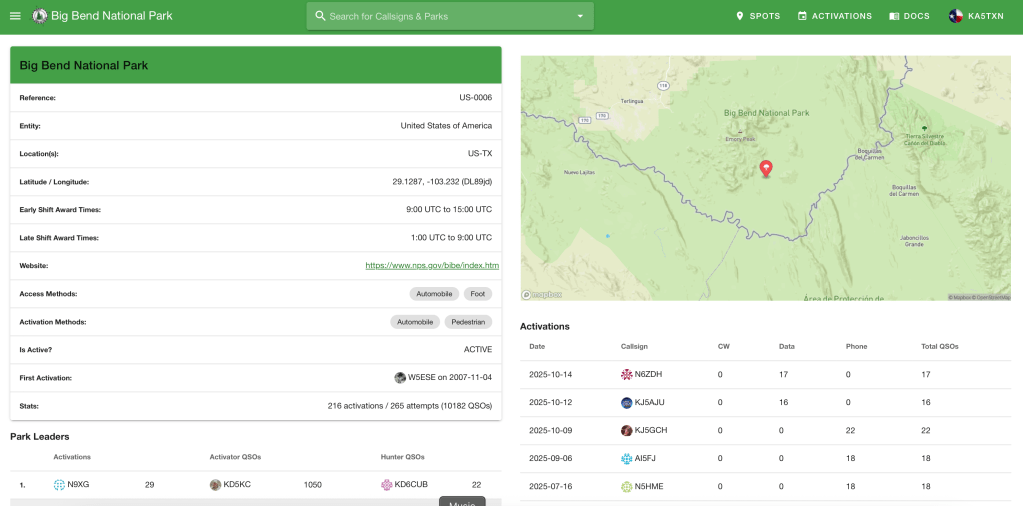
The park information page offers some helpful information in addition to the names and cool map cutout. These are the things I key in on.
- Latitude and longitude we can paste into google maps, iPhone maps, or your GPS if it’s setup for WGS84 coordinate system.
- A link to the entity website. These webs sites can be helpful for visiting a new park. You can often find:
- Phone numbers to the keepers of the park.
- Park maps with the true boundaries, trails, and picnic areas.
- ACTUAL directions to the park. This is helpful when GPS nav to the coordinates on the park page brings you to the middle of a farm road with no signs of a park.
- The “Activations” shows the call signs of the last few guys to activate this park. You can use the QRZ lookup to find their email address then email questions to someone who’s been there. I’ve received and answered several emails like this.
Google Maps
Google maps is a fantastic resource for park activators. Now, I don’t pretend to be a cartographer or intend to educate you on land navigation, but I think google maps will do just about anything you can ask from an electronic map or electronic navigation device. Except run without satellite service or electricity. Of particular use to me:
- Google maps will understand several different coordinate systems and gives a location in WGS84. Just right click on the map and it pops up the coordinates. With your Garmin configured for WGS84, you can tap them directly into your handheld GPS or iPhone. I’ll give you my take on the reliability of all this in the part on Map Apps, below.
- It has a satellite layer that lets you see trails, parking lots, buildings, and trees.
- Depending on the particular location, Google Maps can offer a street view.
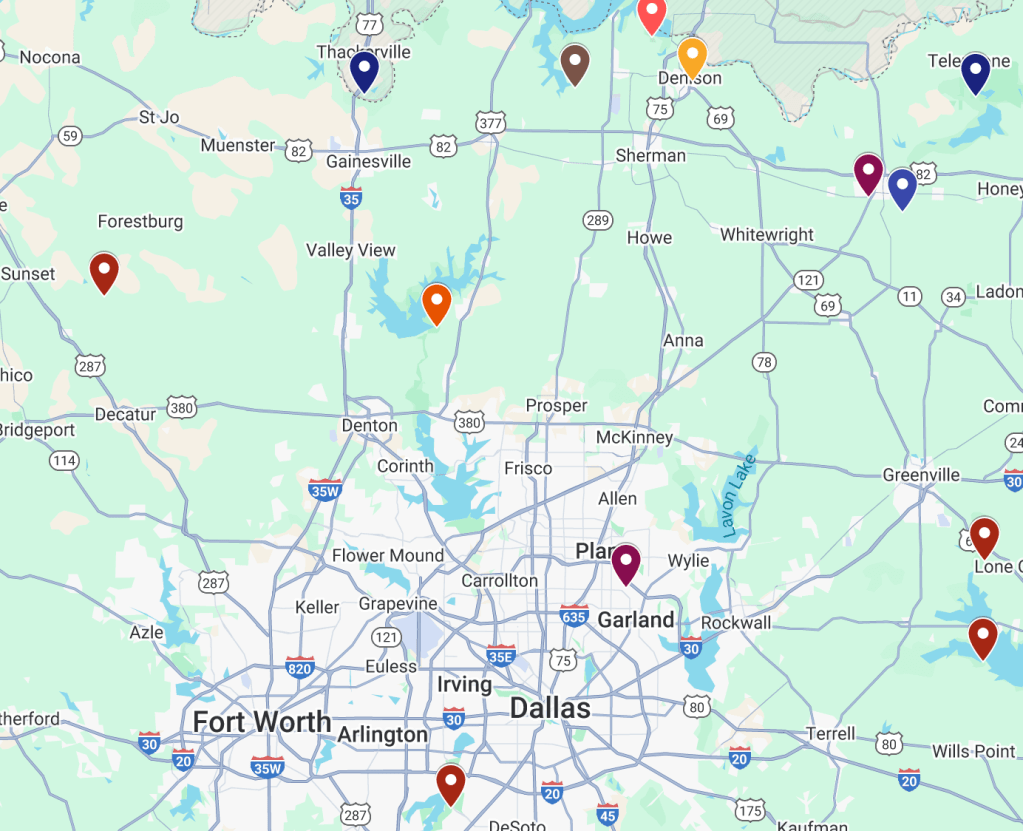
- You can import a parks list from the POTA.app website into Google Maps. This is great for improvised activations, what I call hip shoots. Scenario: XLY asks, “Let’s go somewhere this weekend, where do you want to go?” Well, I can whip out my phone, open “My Maps” and see exactly what parks I’ve activated and haven’t.
How do we get there?
This seems simple to me because we do it every day, well, every day we go to a new store, and new doctor, or to some familiar place and we want to see our ETA. While this is as common as driving for some, it’s at the core of what we do as Activators.
Map Apps
I’m still delighted when I plug my phone into my car and a map pops up on the dash and talks to me like the “Bitch’n Betty” in an F-18. What we called “moving map” technology in the late 80’s we now call “meh- standard”.
Whether you navigate with Google Maps, Waze, or iPhone Maps, you still need the same basic things: destination, GPS service, cell service, and the electricity to power it all. I think Google claims to be able to work “offline” but I haven’t tested it at all. Seems to me, that it would involve some pre-planning and downloading. Even then, it’s not going to work without an unobstructed view of multiple GPS satellites.
Garmin GPS
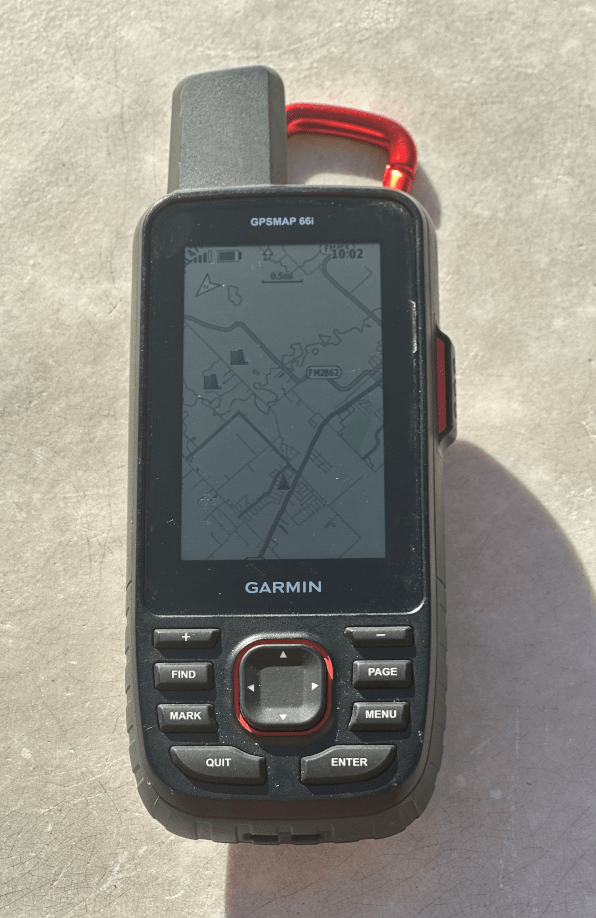
I’ve been through a few of these. Early on when the technology was new, just for the novelty of it and now because I want electronic navigation that works beyond cell service. And of course for the inReach SOS service because I’m old and can spin a bearing at any time. I keep a Garmin GPSMAP 66i in my car’s center console. My 66i has an overlay for public lands. Handy.
Paper Maps
I’ve always loved and respected paper maps (what we used to just call… maps). What I learned and used backpacking in the Boy Scouts became a load-bearing pillar in my career in the Marines. I love the process of planning a route, writing down on a cheat-sheet the turns and things I should see to confirm I’m on track, then executing the plan and having it all work, just like I planned it. It’s a skill and I suppose it’s mostly a dead skill, like wheelwrights, they’re still around but not on Main Street. Where most would consider this analog navigation slow and error prone, I consider it rewarding and fun – because I get to participate, I’m the navigator.
Rand McNally https://randpublishing.com/road-maps is still the go-to source for road atlases and the road maps I call gas station maps. They used to be in every gas station across the country – now you’re better off ordering them online.
I use CALtopo https://caltopo.com/about/ where there are trails instead of roads. This a great tool for topo maps that lets you print and save to pdf whatever you want. CALTopo has an overlay for public lands that will show the actual boundaries of a park.
The traditional source for paper topo maps is https://mapstore.mytopo.com/. They have an interface for you to open maps online and print them but it’s not as convenient as CALtopo.
Wrapping it up…
For me, activating parks is about gathering the knowledge and tools to make it work every time. Like our choices of radios and antennas, they all bring a set of attributes – pros and cons – that we apply to solve the various portable radio challenges. It’s the same with my mapping and navigations tools and methods – one thing shows me this, and this other thing shows me that, so we combine and mix tools together to get the best results.
What do you use to find your parks?
As Always,
TNX ES 73
KA5TXN
DitWit

 DitWit Portable Radio
Leave a comment